Log Entry

Live Preview and the New LWC Dev Loop in Summer '26

May 7, 2026 · 18 min read

Live Preview is the sort of tooling change that sounds small until you count how often you deploy, refresh, click back to a record page, and try to remember what you were testing.

Summer '26 makes the important parts real for Lightning Web Components: Single Component Live Preview in the browser is generally available, and the Live Preview VS Code extension is generally available for LWC.

The headline is not just that Local Dev has a new name.

The headline is that the LWC feedback loop finally feels more like frontend development.

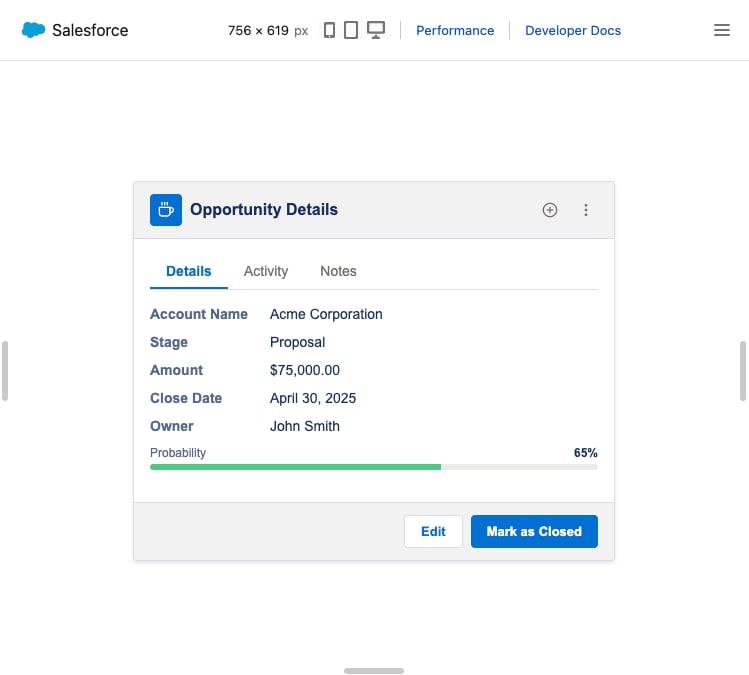
Salesforce Live Preview showing a single Lightning web component in the browser

Source: Salesforce LWC Developer Guide: Run a Live Component Preview.

Quick snapshot

  • What changed: Local Dev is now called Live Preview.
  • Browser preview: Single Component Live Preview for LWC is generally available.
  • IDE preview: The Live Preview VS Code extension is generally available for LWC.
  • CLI commands: sf lightning dev component, sf lightning dev app, and sf lightning dev site.
  • Useful bit: changes to common .html, .js, and .css files can show up without the normal deploy-and-refresh cycle.
  • Not magic: some changes still need a refresh, deployment, or preview restart.

My short version:

Live Preview is not a replacement for testing in a real org page. It is a way to stop wasting five minutes to inspect a two-line UI change.

The old LWC loop

The old loop usually looked like this:

  1. Change the component locally.
  2. Deploy to a sandbox.
  3. Open the app, record page, or Experience site.
  4. Navigate back to the exact state you were testing.
  5. Refresh.
  6. Realise the spacing is still wrong.
  7. Repeat.

That loop is survivable for backend changes.

It is miserable for UI work.

If you are tuning empty states, responsive layouts, conditional panels, keyboard focus, loading states, error messages, or small SLDS details, the cost is not the code. The cost is getting back to the same visual state again and again.

Live Preview cuts that down.

Example 1: preview one component in the browser

For a single LWC, run:

sf update
sf lightning dev component --target-org my-sandbox --name alarmList

Salesforce says the CLI now installs the Live Preview plugin automatically, and if the feature is not enabled yet, the CLI prompts you to enable it.

That matters because the setup path is less annoying than the older local-dev flow.

For a component like this:

<template>
  <lightning-card title="Active Alarms">
    <template if:true={hasAlarms}>
      <c-alarm-list rows={visibleRows}></c-alarm-list>
    </template>

    <template if:false={hasAlarms}>
      <c-empty-state
        title="No active alarms"
        message="Everything is quiet right now">
      </c-empty-state>
    </template>
  </lightning-card>
</template>

you can use Live Preview to iterate on the card, empty state, list density, and responsive behaviour without repeatedly deploying the whole thing just to inspect markup and CSS.

That is where this becomes useful.

Example 2: resize the component without building fake pages

The browser preview has a toolbar for changing component dimensions. That sounds like a small detail, but it is exactly the kind of thing LWC teams need.

You can test:

  • narrow utility panel width
  • record page column width
  • mobile-ish component width
  • dashboard tile width
  • a full-page app container

The practical win is that you can catch layout problems earlier.

For example, this sort of CSS bug is easier to see when the preview surface can be resized quickly:

.alarm-row {
  display: grid;
  grid-template-columns: minmax(10rem, 1fr) auto auto;
  gap: 0.75rem;
  align-items: center;
}

@media (max-width: 40rem) {
  .alarm-row {
    grid-template-columns: 1fr;
  }
}

Without Live Preview, this often gets tested late, on the actual Lightning page, after a deploy.

With Live Preview, you can make the row ugly on purpose, resize it, fix it, and only then put it back into the wider app context.

Example 3: preview inside VS Code

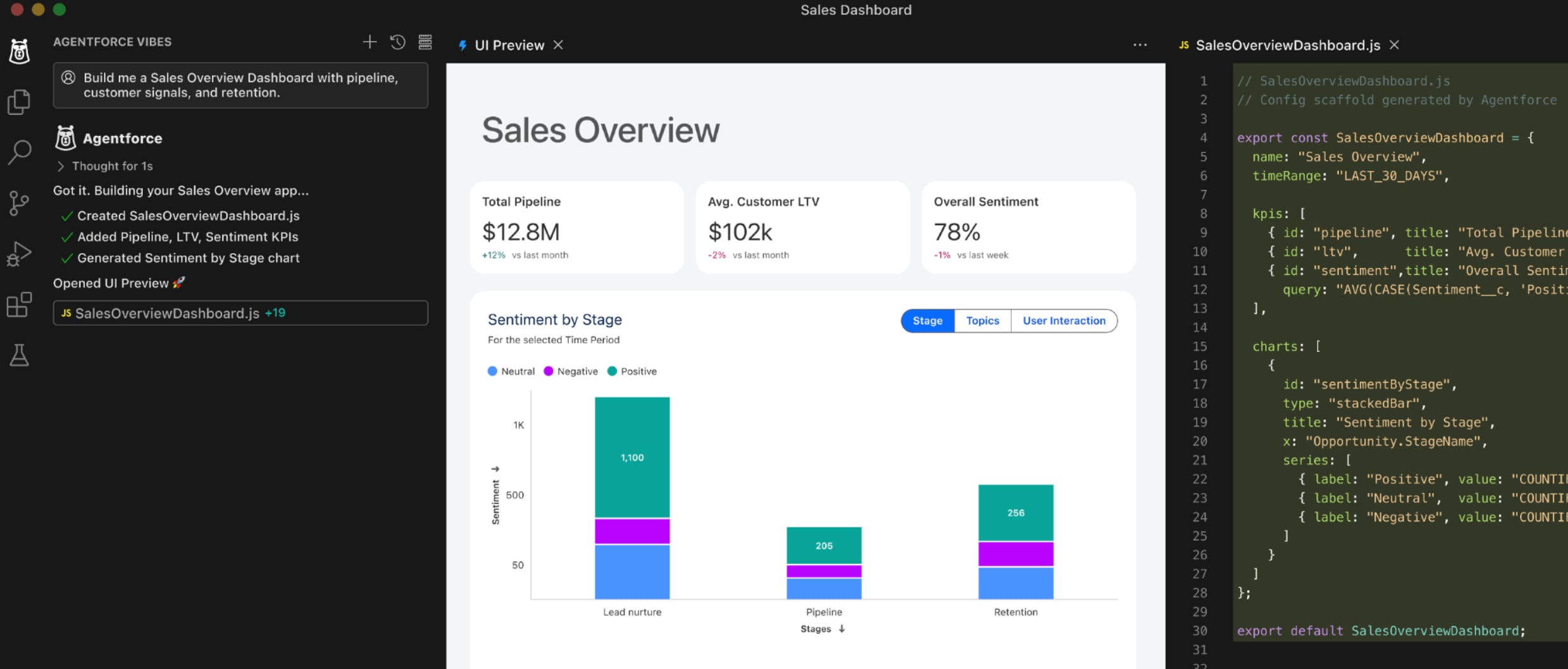
The Live Preview VS Code extension gives you the same kind of feedback inside your editor.

Salesforce Live Preview extension showing an LWC preview inside VS Code

Source: Salesforce LWC Developer Guide: Run a Live Component Preview.

From VS Code, you can open a component in the Lightning Preview panel by:

  • right-clicking an LWC folder and selecting SFDX: Open in Lightning Preview
  • using the command palette and selecting SFDX: Open in Lightning Preview
  • asking Agentforce Vibes to open the component after it changes code

The Agentforce bit is interesting, but I would not make that the centre of the workflow.

The core value is simpler: edit the component, see the component, keep your attention in one place.

Example 4: preview app and mobile surfaces

Live Preview is not only for isolated components.

For an app:

sf lightning dev app --target-org my-sandbox --name "Service Console"

For a mobile preview:

sf lightning dev app --target-org my-sandbox --name "Field Service" --device-type ios

Salesforce supports iOS simulator and Android emulator flows for Lightning app preview. You still need the local mobile tooling set up, but the important design point is that the CLI can preview the app in a mobile environment instead of pretending that desktop Chrome is enough.

Salesforce Live Preview mobile output for a Lightning app

Source: Salesforce LWC Developer Guide: Run a Live Component Preview.

This is useful for components that look fine on desktop but fail in the real places users actually touch them:

  • technician task cards
  • compact record summaries
  • action panels
  • quick status controls
  • mobile navigation containers

What updates automatically

The best Live Preview loop is for normal component edits:

  • HTML changes
  • CSS changes
  • simple JavaScript method changes
  • adding a new component reference in markup
  • importing a CSS-only component

That is the happy path.

For example, changing this:

<lightning-button label="Acknowledge"></lightning-button>

to this:

<lightning-button
  label="Acknowledge"
  variant="brand"
  icon-name="utility:check">
</lightning-button>

is exactly the sort of change Live Preview is good at showing quickly.

What still needs more work

Do not treat Live Preview like a full org runtime replacement.

Salesforce calls out several changes that do not automatically flow through in the same way:

  • adding a new @api property or method
  • changing wire adapter configuration
  • importing a new wire adapter
  • changing a GraphQL query
  • importing new @salesforce scoped modules
  • updating .js-meta.xml
  • revising a service component library

For isolated component preview, a browser refresh may be enough.

For app or Experience site preview, you may need to deploy the change and restart Live Preview.

That is still better than guessing.

The point is to know which loop you are in:

7 / 7 rows

Styling tweakLive Preview
Markup tweakLive Preview
Simple event handler changeLive Preview
New public APIRefresh or deploy
Metadata target changeDeploy
Full page behaviourReal app preview or sandbox page
Permission-dependent behaviourReal user/profile testing

Why this is useful

Live Preview improves the small daily loops.

That is more valuable than it sounds.

Most LWC work is not one dramatic feature. It is a pile of tiny correctness checks:

  • does the spinner clear?
  • does the empty state fit?
  • does the label wrap?
  • does the action stay reachable?
  • does the component still work when the panel is narrow?
  • does the keyboard focus still make sense?
  • does the row density feel right?

When those checks are cheap, developers do them earlier.

That leads to better components.

The team workflow I would use

For serious teams, I would split the workflow like this:

  • Use Single Component Live Preview while building isolated LWC behaviour.
  • Use VS Code Live Preview when doing tight UI iteration inside the editor.
  • Use app Live Preview when the component depends on page layout or app shell.
  • Use real sandbox testing for permissions, record data, automation side effects, and integration behaviour.
  • Use automated tests for the logic that should not depend on eyeballing a preview.

That keeps Live Preview in the right place.

It is not the final gate.

It is the fast loop before the final gate.

Final take

The best part of Live Preview is not that Salesforce renamed Local Dev.

It is that the edit-preview loop is now closer to how frontend developers expect to work.

For LWC teams, that means fewer dead minutes between a change and the moment you can actually judge it.

And that is the sort of improvement that compounds quietly every day.

Sources